Obtaining a Zymtrace MCP Token
MCP tokens allow AI assistants to authenticate with the Zymtrace MCP server. If your Zymtrace deployment has authentication enabled, you'll need an MCP token to use the MCP integration.
If your Zymtrace deployment doesn't have authentication enabled, you can skip token setup entirely and connect directly to your MCP endpoint.
Prerequisites
You need one of the following:
- Admin role
- User role with
service:token:createpermission
Steps
- Log in to Zymtrace
- Navigate to Your profile picture → Account → Service Tokens
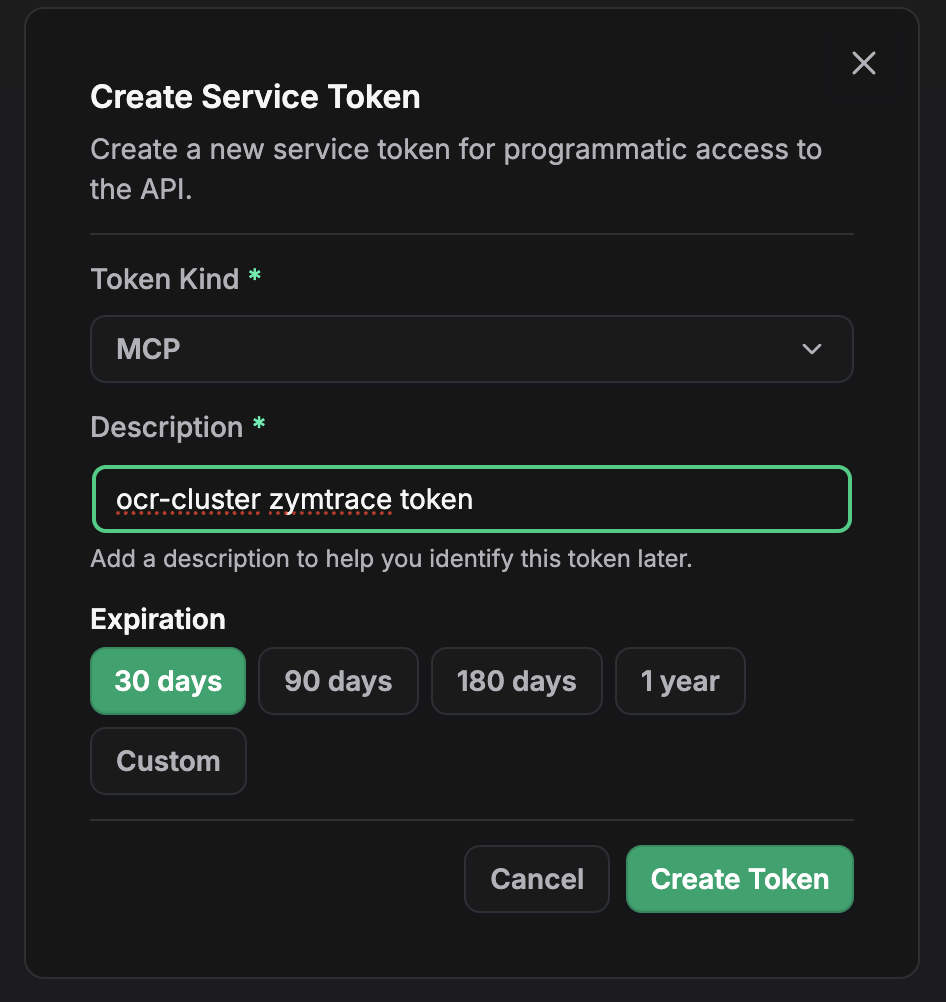
- Click Create Token
- Select MCP as the token type
- Provide a description for the token (e.g., "Claude Desktop Integration")
- Click Create
- Copy the token immediately and store it securely
The token is only shown once. If you lose it, you'll need to create a new token.
Once you have your token, return to the Configure MCP guide to configure your AI assistant.
Managing Tokens
Viewing Tokens
To view all your service tokens:
- Navigate to Your profile picture → Account → Service Tokens
- You'll see a list showing:
- Token name/description
- Token type (MCP, Agent, etc.)
- Creation date
- Expiration date (if applicable)
Revoking Tokens
To revoke a token:
- Navigate to Your profile picture → Account → Service Tokens
- Find the token you want to revoke
- Click the three dots menu (⋮)
- Select Revoke
- Confirm the revocation
Revoking a token takes effect immediately. Any AI assistants using the token will lose access and need to be reconfigured with a new token.
Token Permissions
MCP tokens have read-only access to performance data:
- View flamegraphs
- Query top functions and entities
- Access GPU and CPU metrics
- Read historical performance data
MCP tokens cannot:
- Modify system configuration
- Create or delete resources
- Access authentication settings
- Perform administrative actions
Troubleshooting
Invalid Token Error
If you receive authentication errors:
- Verify the token was copied correctly (no extra spaces)
- Check that the token hasn't been revoked
- Ensure the token type is set to "MCP"